2022年1月17日星期一

How to install Nissan Consult III PLUS 75.15.00 Software Driver and Patch


5 steps to install Nissan Consult III PLUS V75.15.00 diagnostic & programming software on Windows 7.
Software version: V75.15

supports ECU programming function without working with immobiliser card.

Operating system:  Windows XP and Windows 7/8/10 operating system. Cannot work on VISTA O/S.

Multi-languages available: English, Chinese, Finnish, French, German, Greek, Italian, Japanese, Portuguese,Russian, Spanish, Turkish, Thai, Czech, Polish, Hungarian
How to install Nissan Consult III PLUS 75.15.00 Software Driver and Patch-1 (2) How to install Nissan Consult III PLUS 75.15.00 Software Driver and Patch-2 (2)

step 1: preparation

step 2: consult iii plus v75 software

step 3: consult-iii plus patch

step 4: consult iii plus driver software

step 5: consult 3 plus 75.15.00 test

in detail…

step 1: preparation

go to the removable disk

go to folder “C3+ 75” and copy rar file “tempNissan” to desktop

then extract file “tempNissan” on desktop

go to folder “C3+ 65” – “Consult III PLUS V65.12”

copy folder “C3P License” to desktop

go to folder “tempNissan” – “C2P_V75.15.00”

copy “setup.inx” on desktop and then paste it in the folder
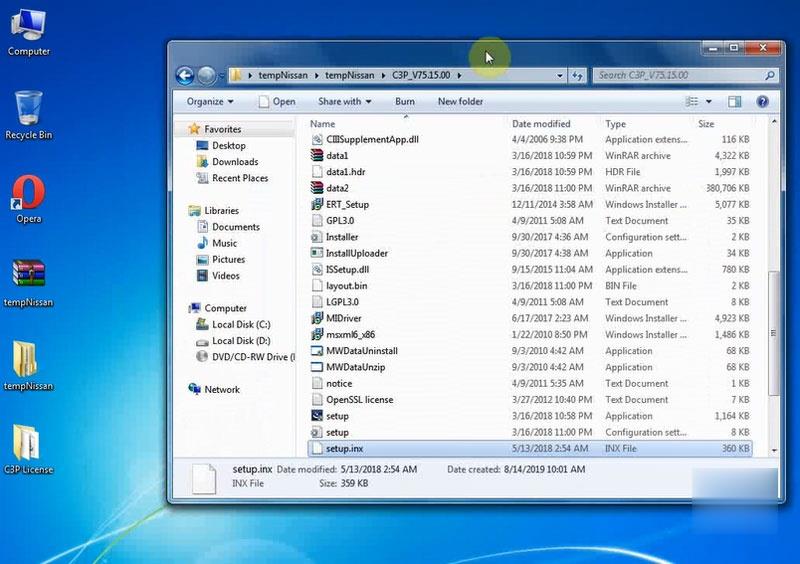
How to install Nissan Consult III PLUS 75.15.00 Software Driver and Patch-3 (2)

step 2: consult iii plus v75 software

open Consult III PLUS “setup” application

installing consult iii plus components
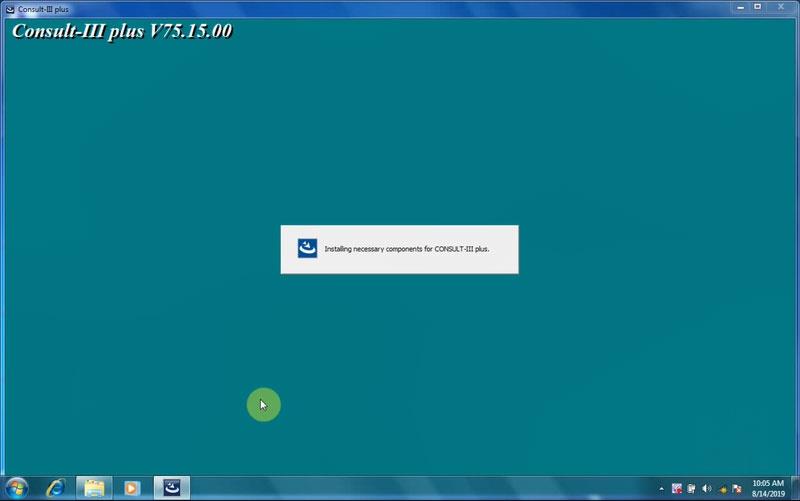
How to install Nissan Consult III PLUS 75.15.00 Software Driver and Patch-4 (2)

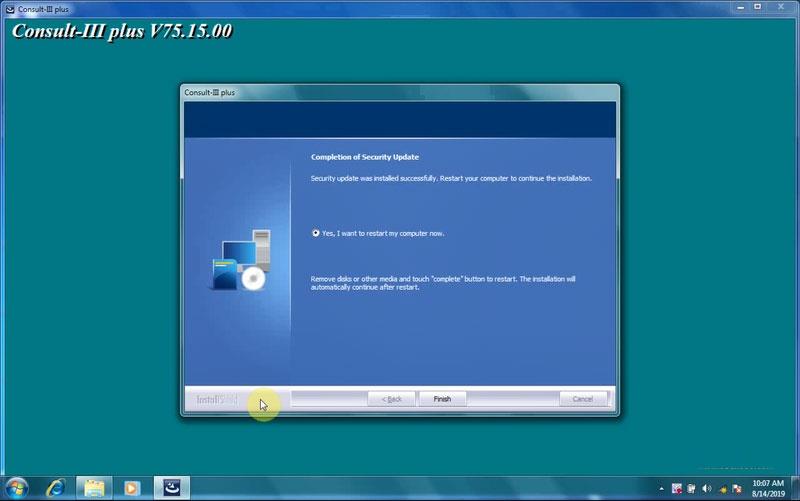
installed security update

How to install Nissan Consult III PLUS 75.15.00 Software Driver and Patch-5 (2)

finish

again, installing consult 3 plus components

first installation
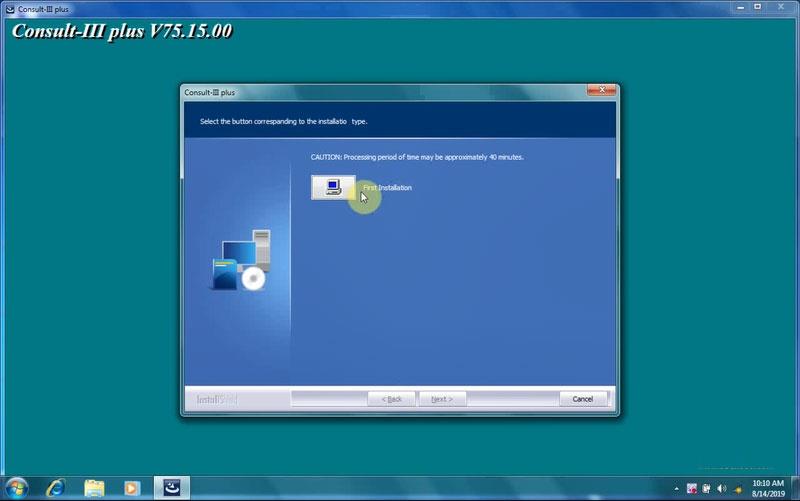
How to install Nissan Consult III PLUS 75.15.00 Software Driver and Patch-6 (2)

accept the license agreement

select your area. here: north america

select your country

select your language
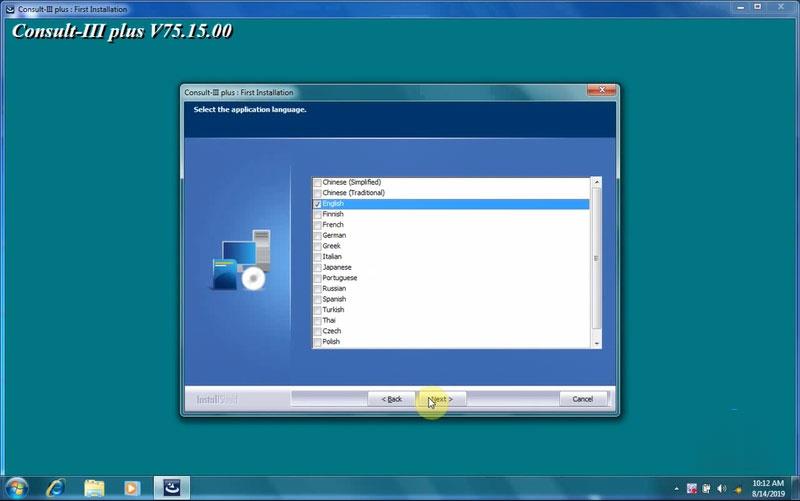
How to install Nissan Consult III PLUS 75.15.00 Software Driver and Patch-7 (2)

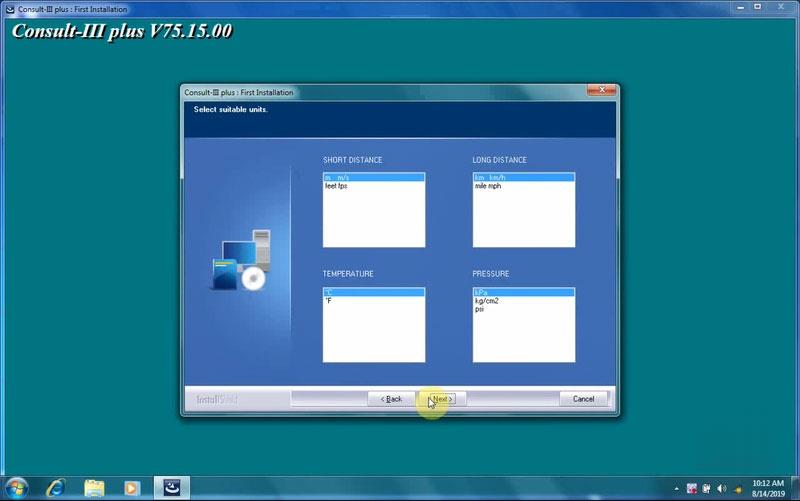
select suitable units

How to install Nissan Consult III PLUS 75.15.00 Software Driver and Patch-8 (2)

select a suitable unit: nissan, infiniti, datsun

select copying file

installing consult iii plus
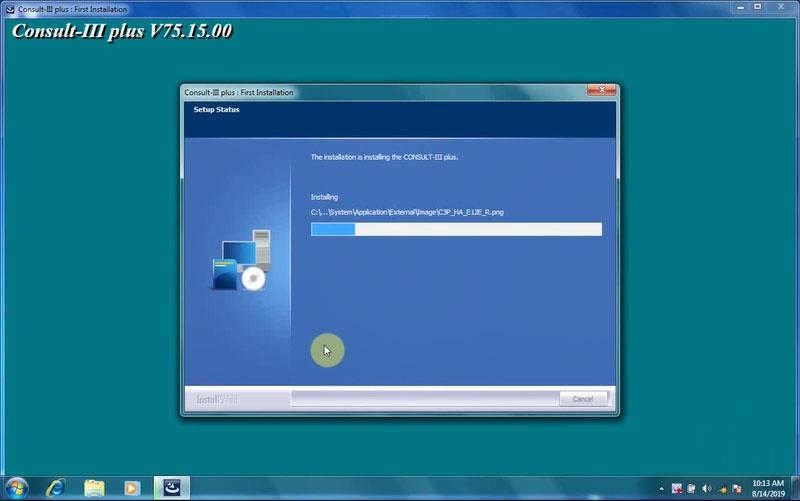
How to install Nissan Consult III PLUS 75.15.00 Software Driver and Patch-9 (2)

installing components

installed nissan consult-iii plus software
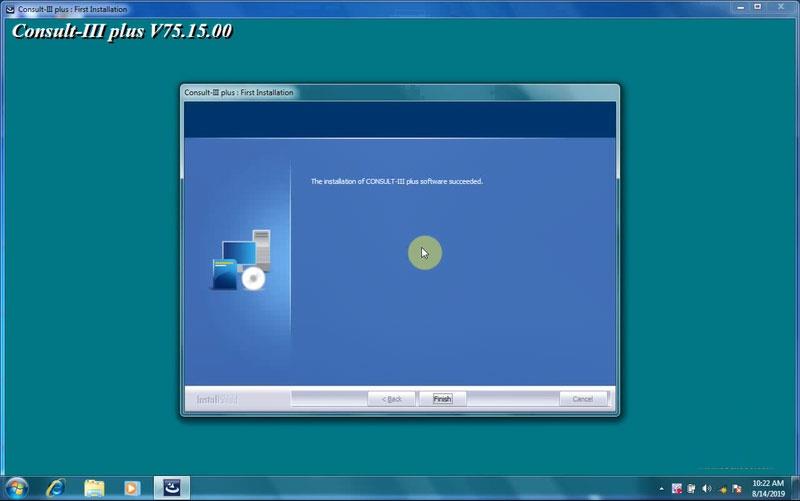
How to install Nissan Consult III PLUS 75.15.00 Software Driver and Patch-10 (2)

finish

step 3: consult-iii plus patch

go to folder “C3P License” on desktop

open “C3PCheckLicense” app

consult iii plus is installed normally
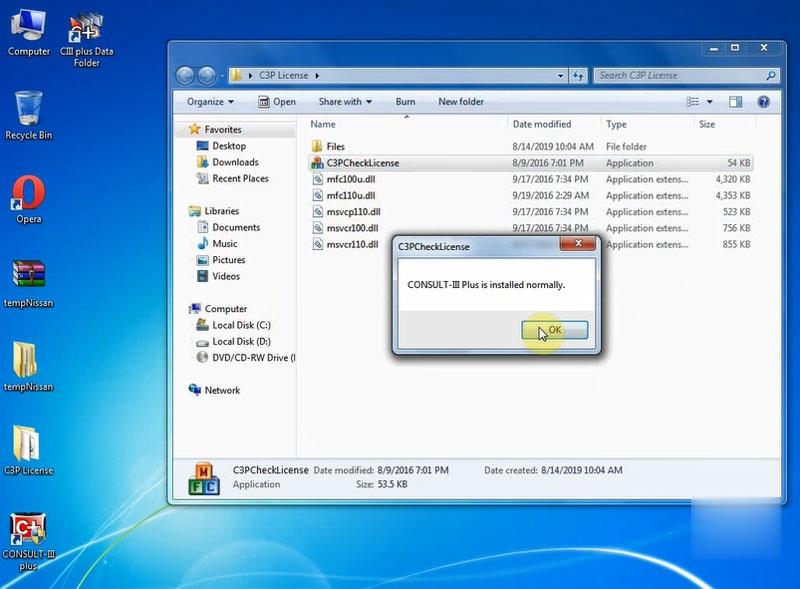
How to install Nissan Consult III PLUS 75.15.00 Software Driver and Patch-11 (2)

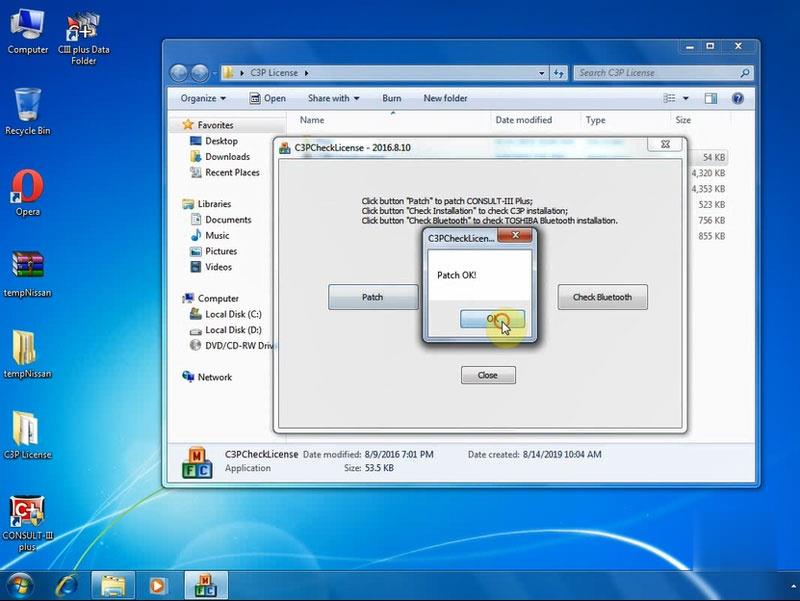
click on “Patch” to get nissan consult iii plus patch
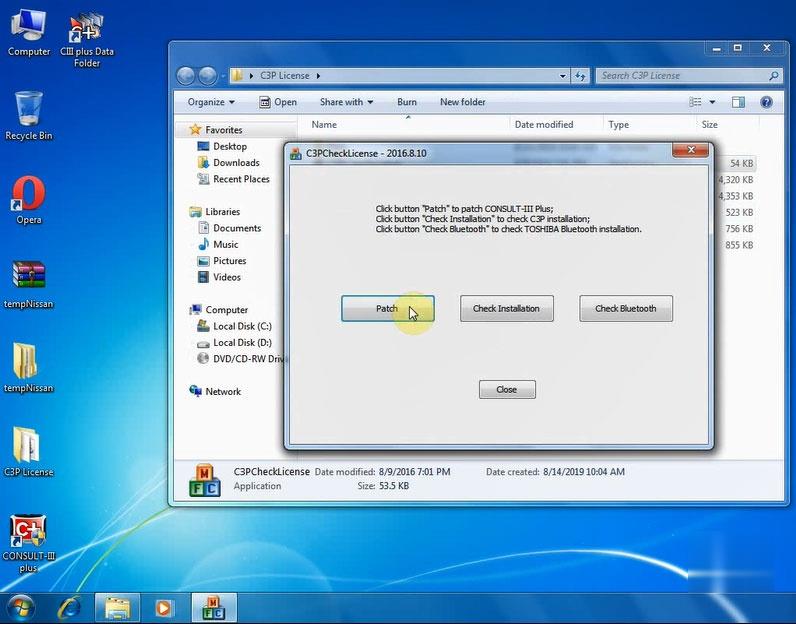
How to install Nissan Consult III PLUS 75.15.00 Software Driver and Patch-12 (2) How to install Nissan Consult III PLUS 75.15.00 Software Driver and Patch-13 (2)

patch ok

step 4: consult iii plus driver software

automatically installed device driver software
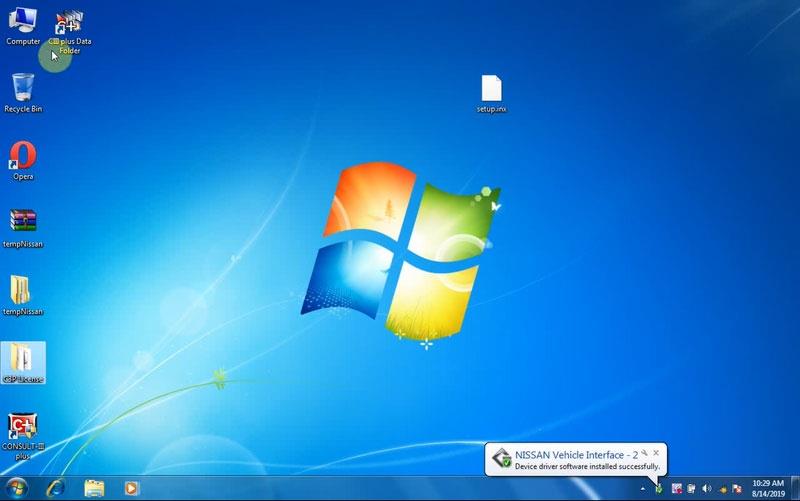
How to install Nissan Consult III PLUS 75.15.00 Software Driver and Patch-14 (2)

open computer management: device manager – nissan diagnostic devices – nissan vehicle interface 2
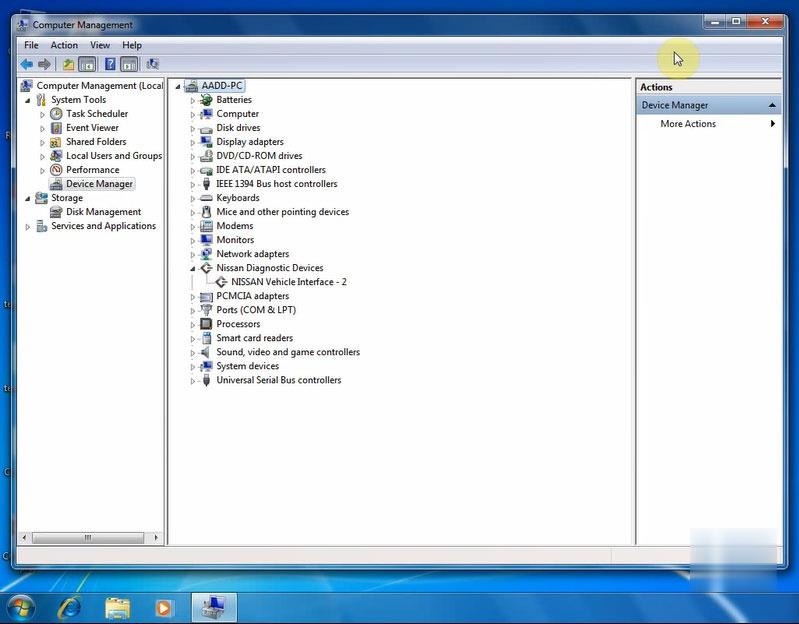
How to install Nissan Consult III PLUS 75.15.00 Software Driver and Patch-15 (2)

step 5: consult 3 plus 75.15.00 test

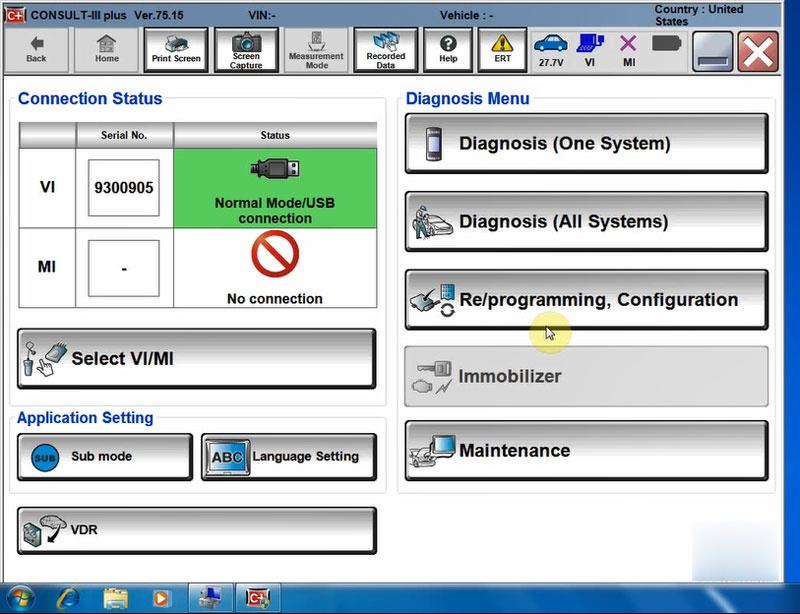
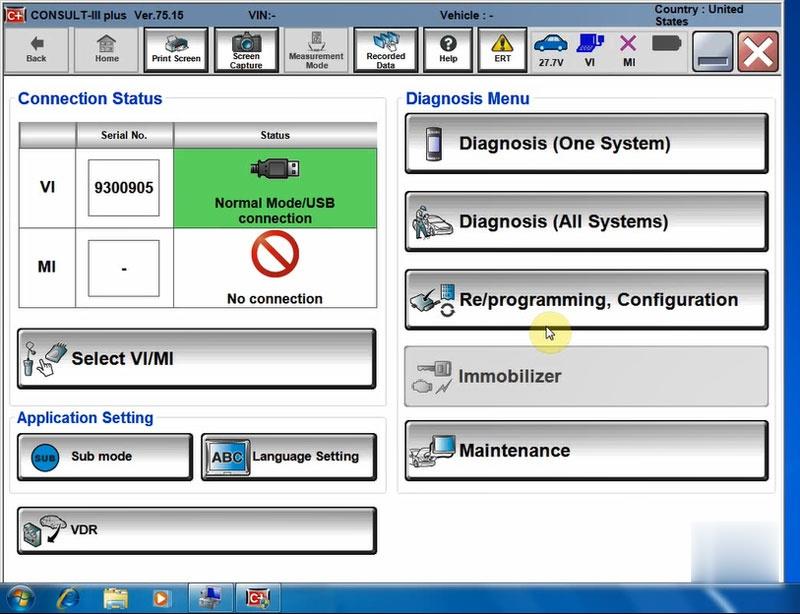
open CONSULT III plus on desktop
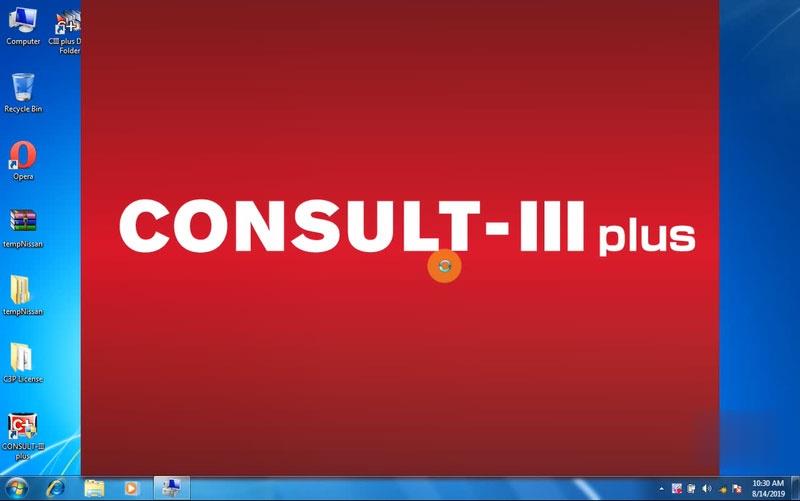
How to install Nissan Consult III PLUS 75.15.00 Software Driver and Patch-16 (2) How to install Nissan Consult III PLUS 75.15.00 Software Driver and Patch-17 (2)

nissan consult iii 75.15.00 works good! installation is success!

link to nissan consult iii plus 75 best china clone:

https://www.autonumen.com/goods-6773-Nissan-Consult-3-plus-with-Laptop.html
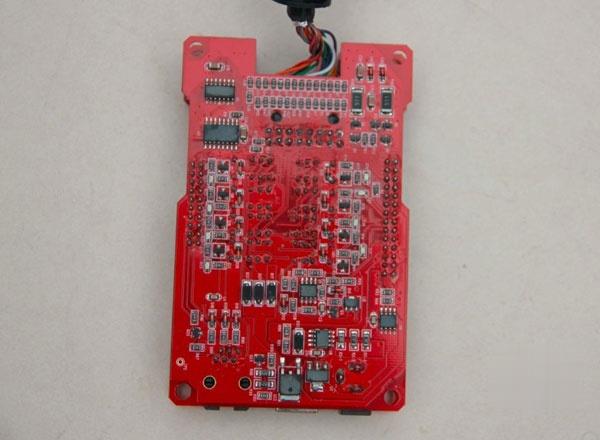
How to install Nissan Consult III PLUS 75.15.00 Software Driver and Patch-18 (2)
How to install Nissan Consult III PLUS 75.15.00 Software Driver and Patch-19 (2) How to install Nissan Consult III PLUS 75.15.00 Software Driver and Patch-20 (2)

2022年1月16日星期日

Nissan ECU Reflash Update Procedure with Consult III Plus

Nissan Consult III Plus scan tool will be needed to perform the process of reflashing/reprogramming Nissan ECUs. This process works for any computer on any Nissan vehicle and is the same process if you use the factory tool (Nissan Consult) or a J2534 tool.

A Consult3+ clone can be used to flash ECU, but only work on Nissan pre-2016.  For newer Nissans, the reflash file needs to be purchased for the Nissan website and is an extra purchase to the Nissan subscription purchase you also need to make.

On some vehicles you will need to email Nissan to have the file sent to you, these vehicle do not require you to purchase the file but do require the subscription purchase.

Nissan Consult III+  ECU Reflash/Reprogramming Update Procedure

Model example: Nissan Maxima 2016

  • Reprogram ECU
  • Throttle valve closed position learning
  • Idle Air Volume learning
  • Accelerator Pedal Closed position learning
  • Confirmation Start up Engine
  • Erase DTCs
  • Completed

Detail:

Nissan ECU Reflash Update Procedure with Consult III Plus-1 (2)

Select vehicle information, Go to Measurement Mode

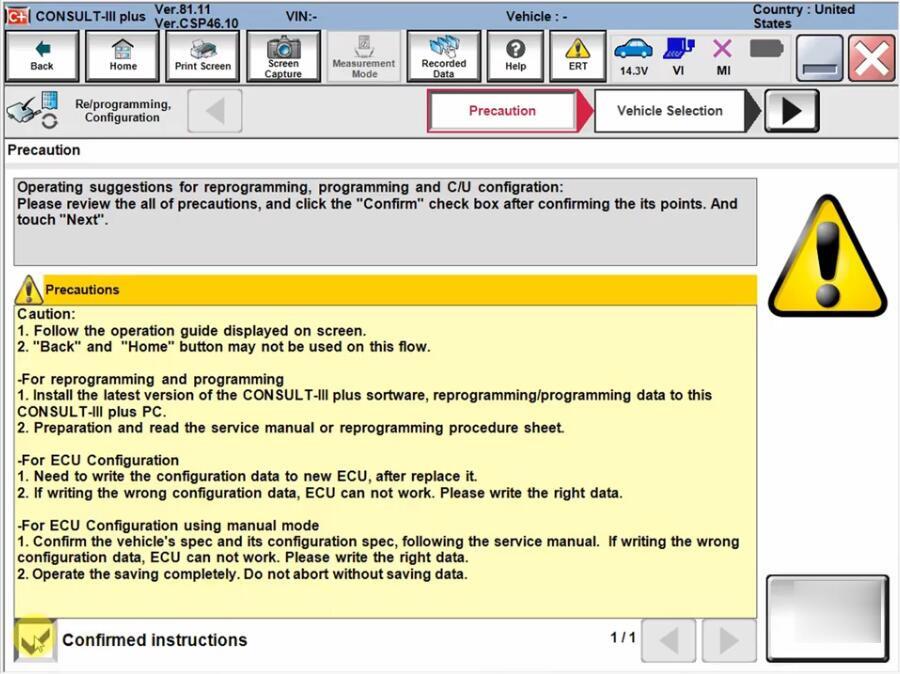
Read Precaution and confirm

Nissan ECU Reflash Update Procedure with Consult III Plus-2 (2)
Read VIN and confirm
Cumminicating  with vehicle

Nissan ECU Reflash Update Procedure with Consult III Plus-3 (2) Nissan ECU Reflash Update Procedure with Consult III Plus-4 (2)
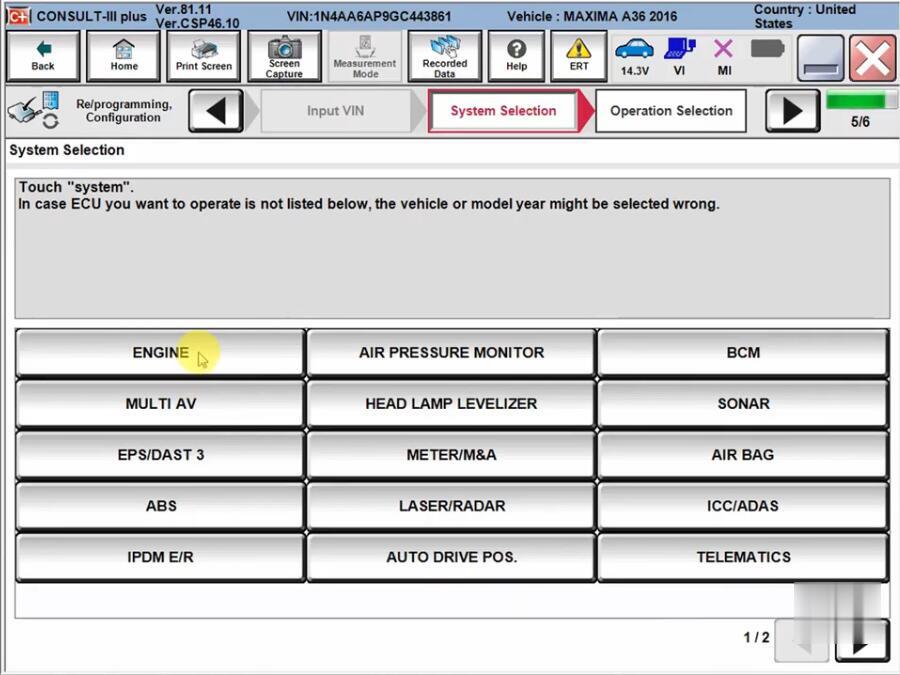
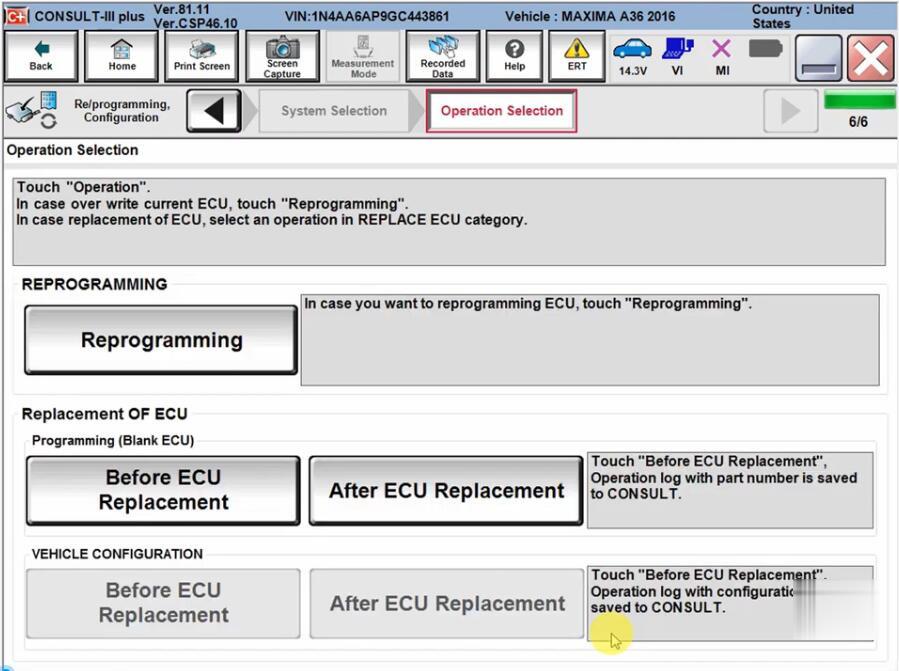
Select Engine system->Reprogramming

Nissan ECU Reflash Update Procedure with Consult III Plus-5 (2)
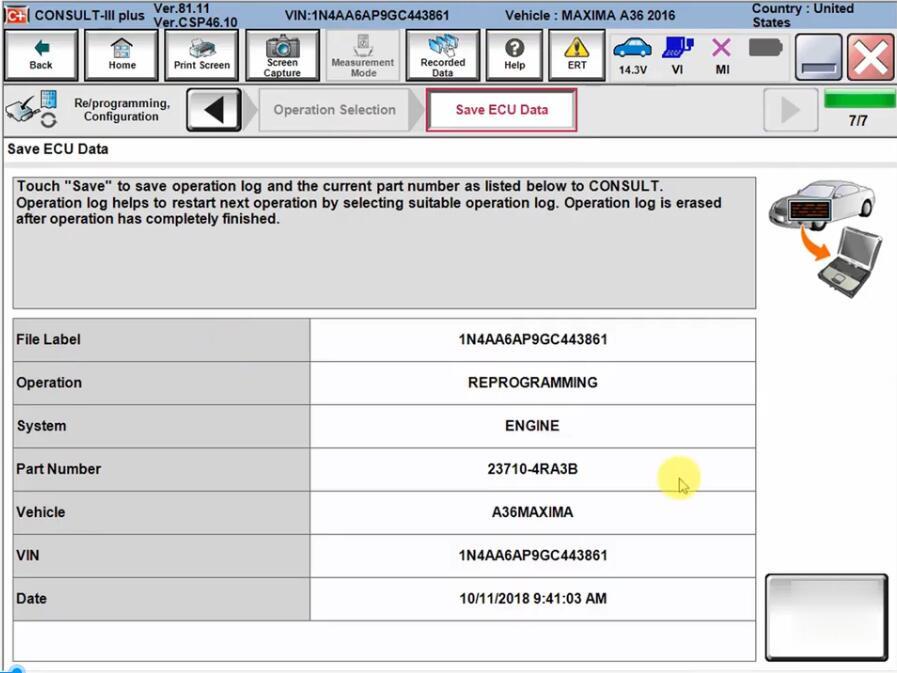
Save operation log

Nissan ECU Reflash Update Procedure with Consult III Plus-6 (2)
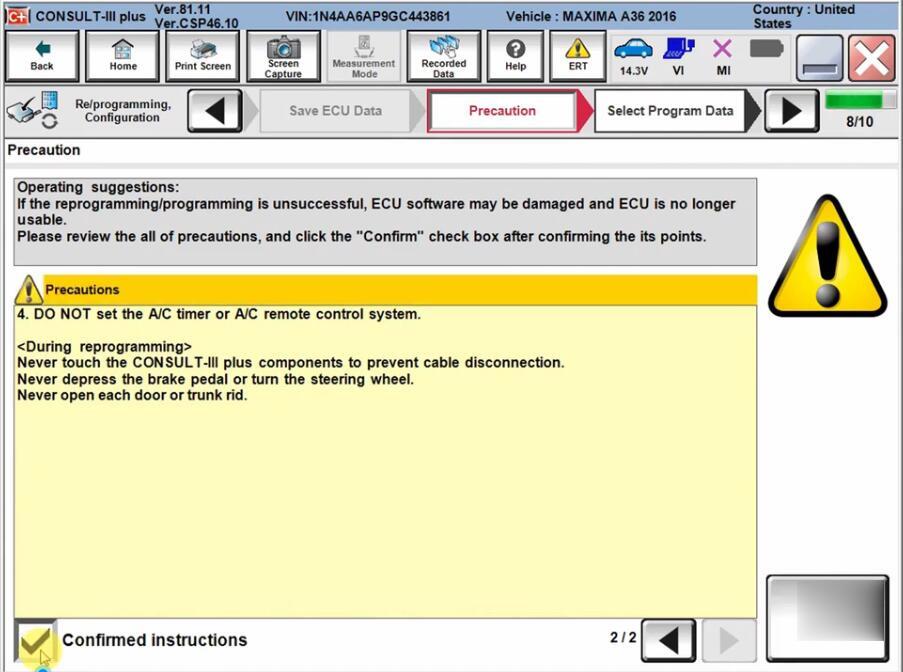
Read and confirm operation procedure

Nissan ECU Reflash Update Procedure with Consult III Plus-7 (2)
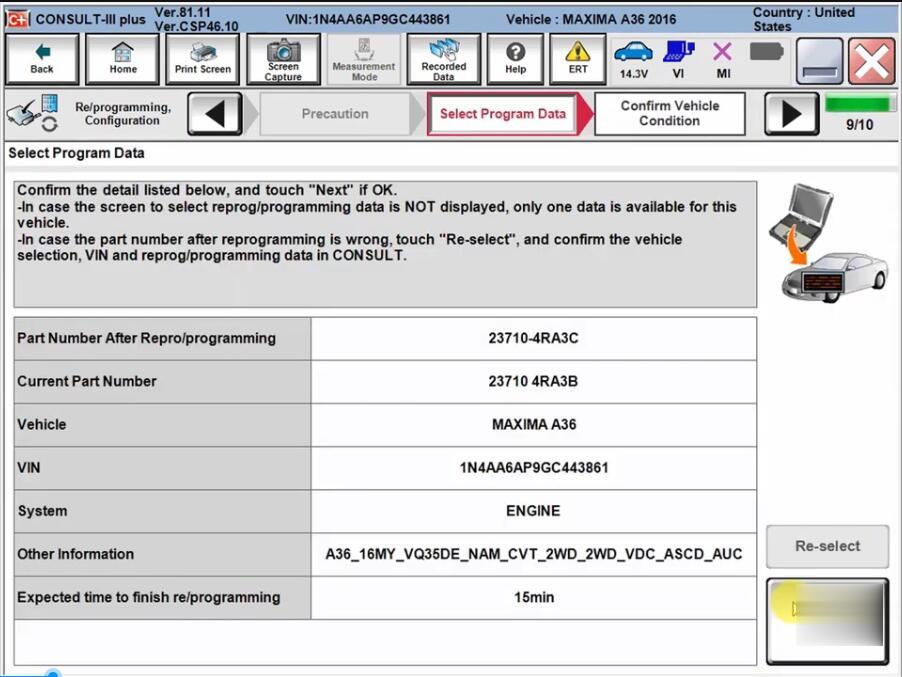
Check vehicle detail information and confirm

Nissan ECU Reflash Update Procedure with Consult III Plus-8 (2) Nissan ECU Reflash Update Procedure with Consult III Plus-9 (2)

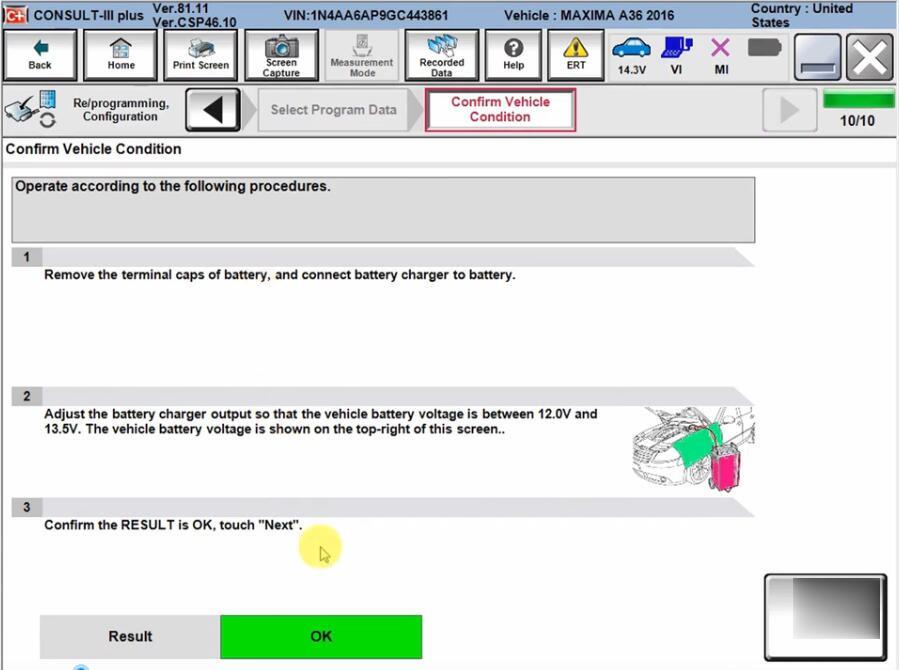
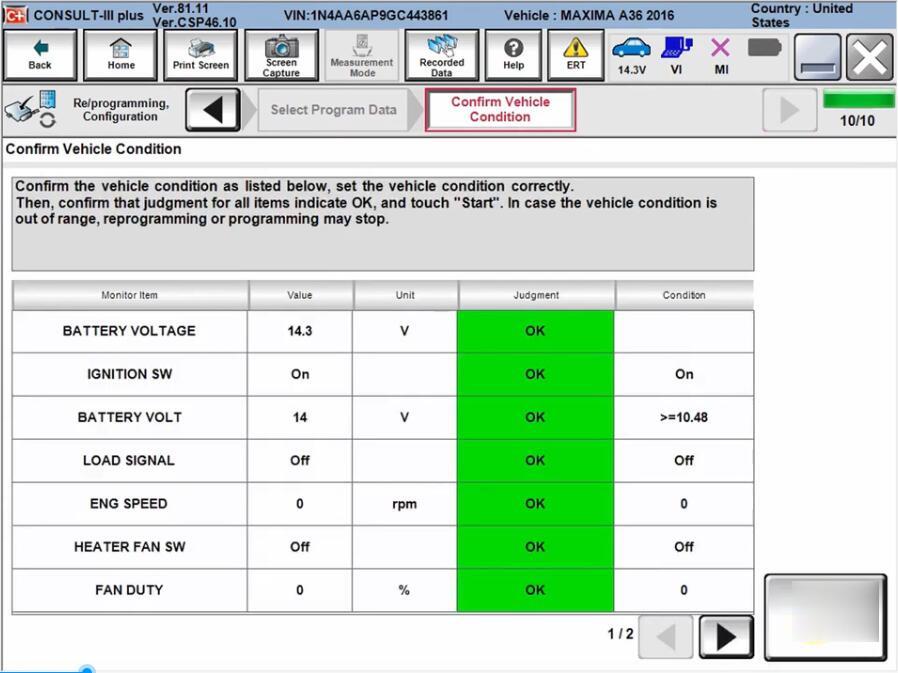
Confirm vehicle condition. Remove the terminal caps of the battery and connect battery charger to battery.  Adjust the battery charger output so that the vehicle voltage is between 12.0V and 13.5V.

Confirm the RESULT is ok and confirm vehicle conditions listed on the interface

Nissan ECU Reflash Update Procedure with Consult III Plus-10 (2) Nissan ECU Reflash Update Procedure with Consult III Plus-11 (2) Nissan ECU Reflash Update Procedure with Consult III Plus-12 (2)

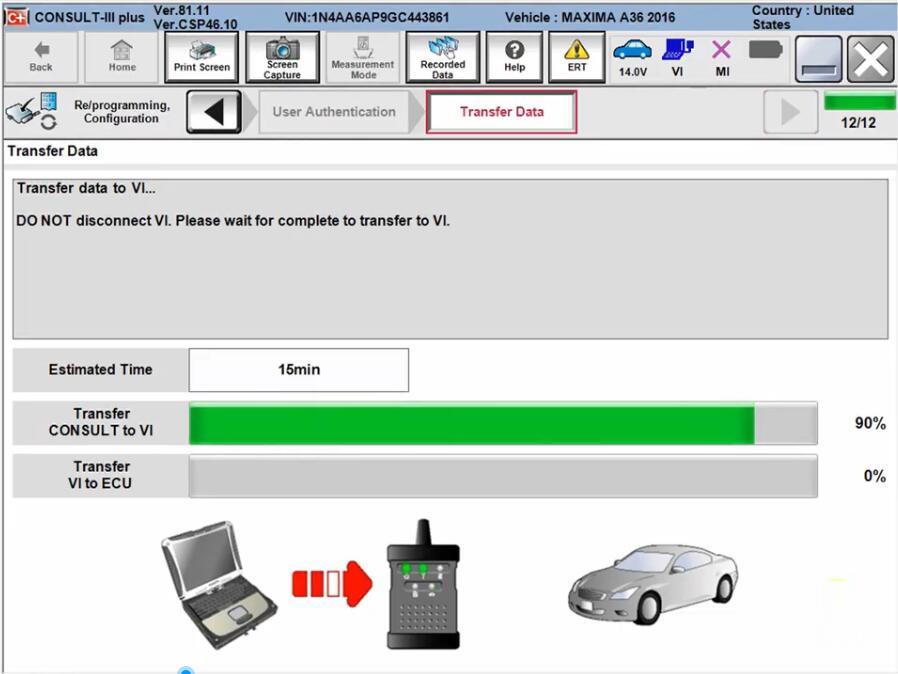
Transfer data among computer, Nissan Consult 3 plus and vehicle

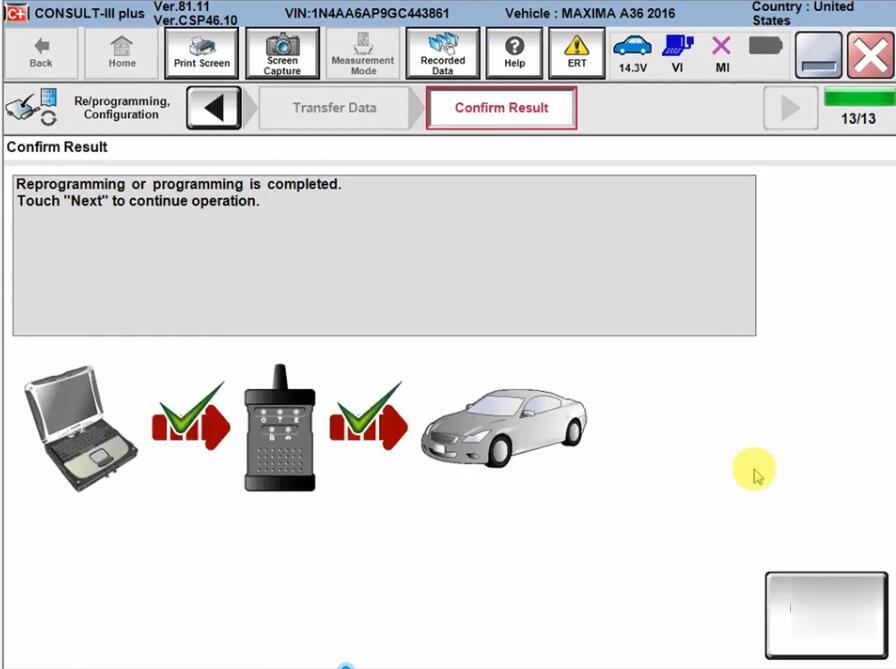
Reprogramming is completed.

Nissan ECU Reflash Update Procedure with Consult III Plus-13 (2)
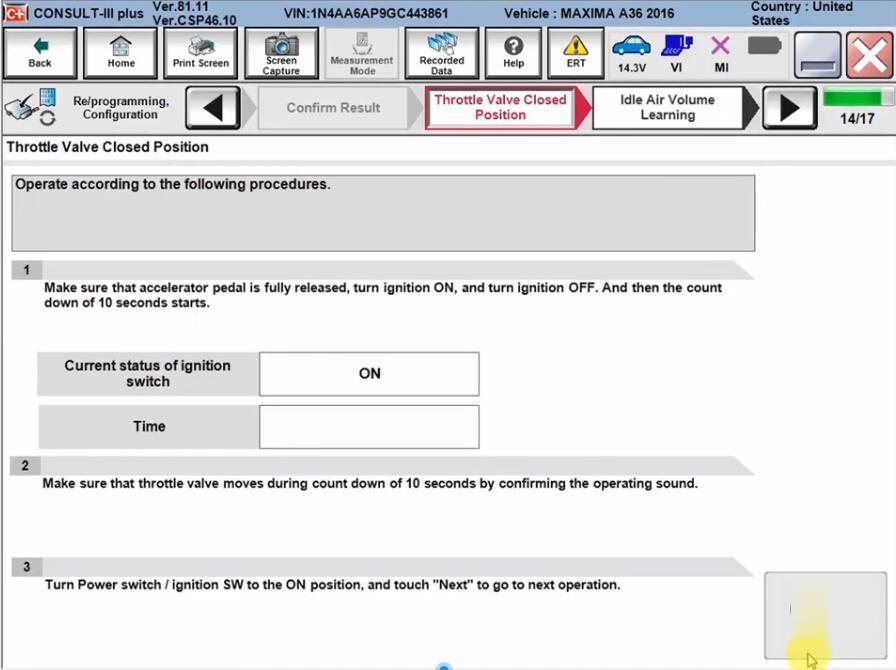
Perform throttle valve closed position learning

Fully release the accelerator pedal. Turn ignition ON and turn off. Then count download of 10 seconds starts.

Make sure throttle value moves during count down of 10 seconds by confirming the operating sound.

Turn Power switch/ignition SW to ON position.
Nissan ECU Reflash Update Procedure with Consult III Plus-14 (2)
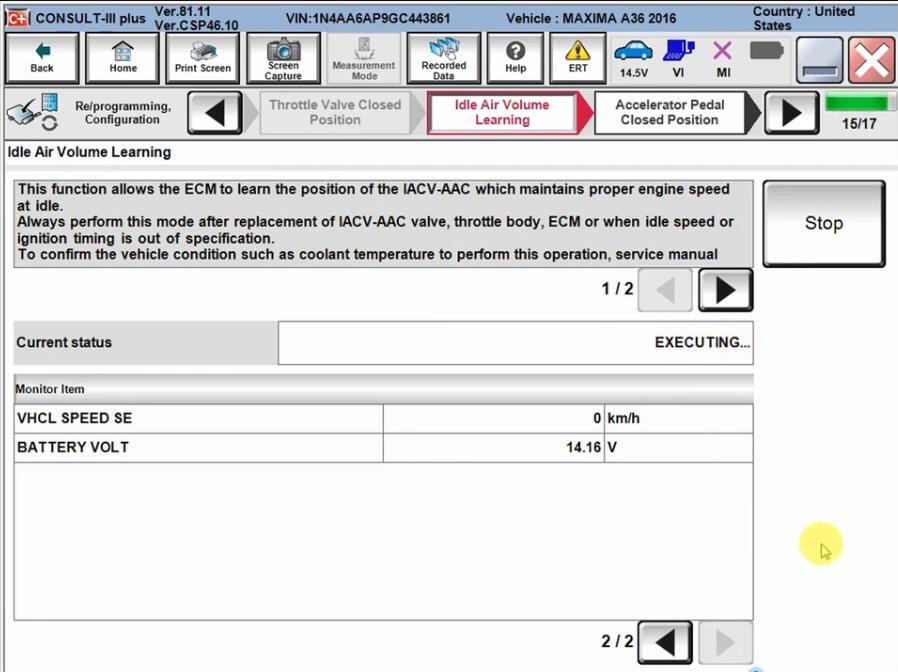
Perform Idle Air Volume learning

Nissan ECU Reflash Update Procedure with Consult III Plus-15 (2)
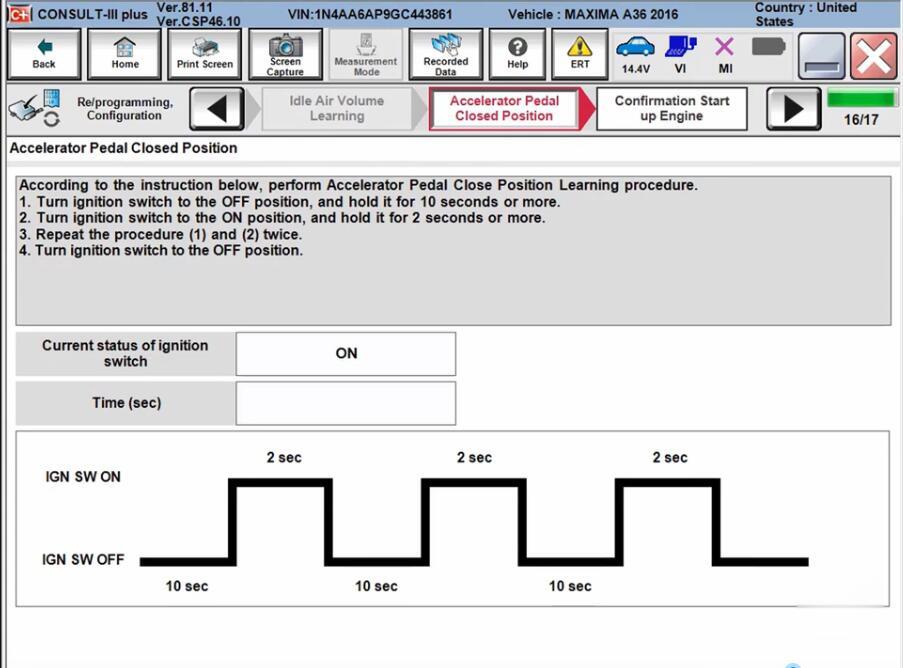
Perform Accelerator Pedal Closed position learning
Turn ignition switch to OFF position and hold it for 10 seconds or more

Turn ignition switch to ON position and hold it for 2 seconds or more

Repeat the procedure once or twice

Turn ignition switch to OFF position

Nissan ECU Reflash Update Procedure with Consult III Plus-16 (2)

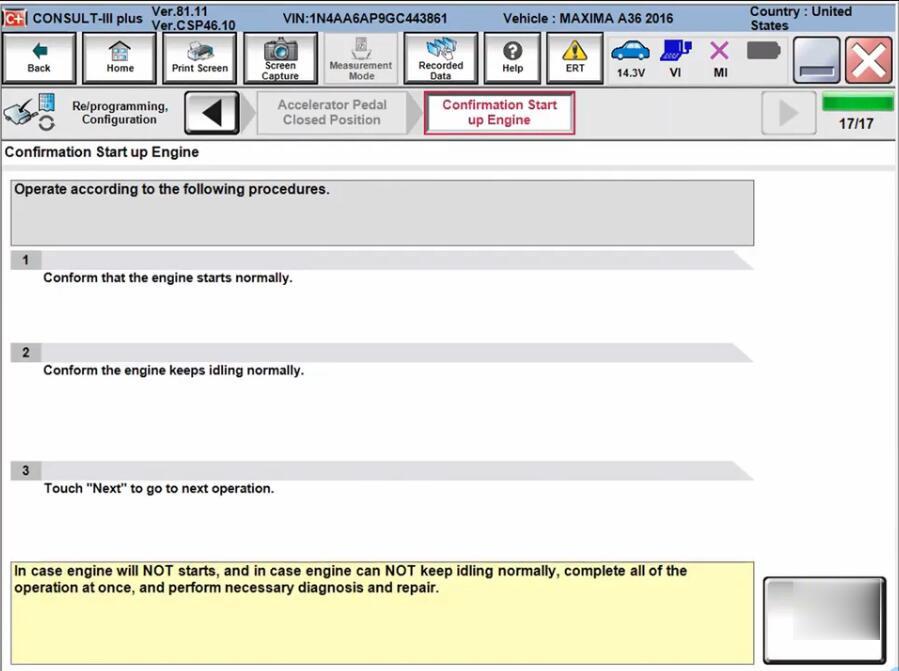
Confirmation Start up Engine
Confirm the engine keeps starts and idling normally.

Nissan ECU Reflash Update Procedure with Consult III Plus-17 (2)
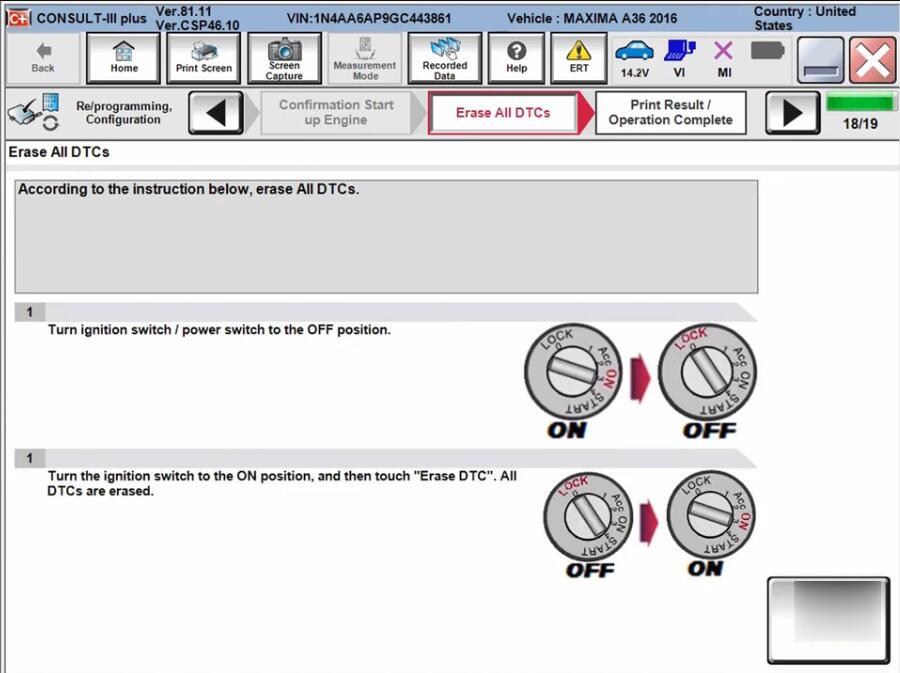
Erase DTCs

Nissan ECU Reflash Update Procedure with Consult III Plus-18 (2)
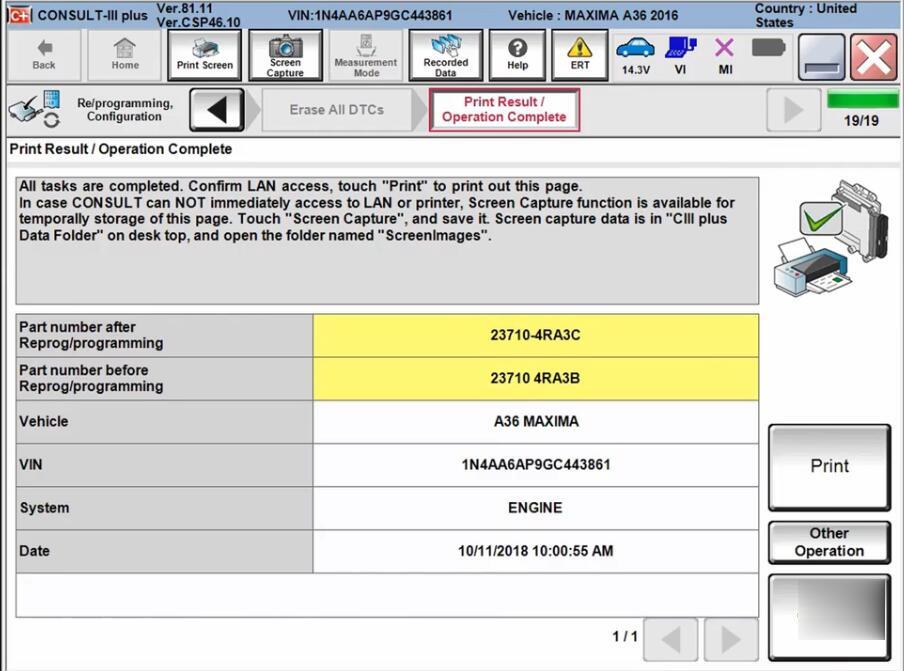
The ECU reflash update procedure is completed.

2021年12月5日星期日

How to choose the car diagnose tool for your vehicle


How to choose the car diagnose tool for your vehicle

We always heard from customers:

1. All function for cars

2. I need all trucks diagnostic tool, And also all brands car diagnostic tools, Please suggest

3. I’m need all function for trucks, If truck & cars one product also ok

4. The one could do ECU programming, immolizer programming, calibration etc

5. 1 product could diagnose both car and truck

6. We want buy proper one, it means all trucks and all cars

Or: My car model No. is XXX, Year is XXX, Which tool will support my car?

Well, we do have tool for all car and all truck: Launch X431 V+ (PRO3) Plus HD3 HD III Truck Module Trucks & Cars 2 in 1 Diagnostic Tool supports car and Heavy Duty Truck.

We have tool for all car: Launch X431 V 8 inch Bluetooth/Wifi Auto Diagnostic Tool X-431 V Scanner. Foxwell diagnose tool. G-scan 3.

We also have tool for all truck: Launch X431 V+ HD3 Wifi/Bluetooth Heavy Duty Truck Diagnostic Tool.

Some customers don’t want the tool for all car or all truck, which tool is best for they?

For BMW vehicle, we have BMW ICOM diagnose tool.

For Porsche, we have Piwis II and Piwis III, Piwis II is support vehicle till 2018 Year, Piwis III is support vehicle till 2021 Year, and Piwis III need choose the laptop with the tool.

For Mercedes Benz vehicle, we have C3, C4 , C5, C6. C3 is for the old car, C6 is for the new car, C4/C5 is between C3 and C6.

For Jaguar Land Rover vehicle, we have JLR diagnose tool.

For Ford & MAZDA vehicle, we have Ford VCM diagnose tool.

For Toyota vehicle, we have TOYOTA DENSO Diagnostic Tester IT2.

For GM/SAAB/OPEL/SUZUKI/ ISUZU/ Holden / Chevrolet vehicle, we have GM Tech 2 and GM MDI2.

For Chrysler & Dodge & Jeep & Fiat vehicle, we have WiTech MicroPod 2.

For Mitsubishi vehicle, we have Mitsubishi MUT-3 diagnostic tool.

For Lexus vehicle, we have OTC GTS diagnose tool.

For Kia & Hyundai vehicle, we have GDS VCI Scan Tool.

For Honda & Acura vehicle, we have C500 Auto Diagnostic Tool and H685 HONDA ACURA Professional Tool.

For Infiniti vehicle, we have SVCI diagnose tool.

For Volkswagen & Audi & Skoda vehicle, we have VAS6154 Diagnostic Tool.

For Isuzu truck and bus, we have G-IDSS diagnose tool.

For Renault vehicle, we have Renault CAN Clip Renault V191.

For Nissan vehicle, we have Consult-3.

For John Deere truck, we have Advisor EDL V2. The 3 software is in the same version for V4.0, the 2 software is in the same version for V4.2, it is divide for 5.2 version.

For New Holland vehicle, we have CNH EST 8.6 & 9.2.

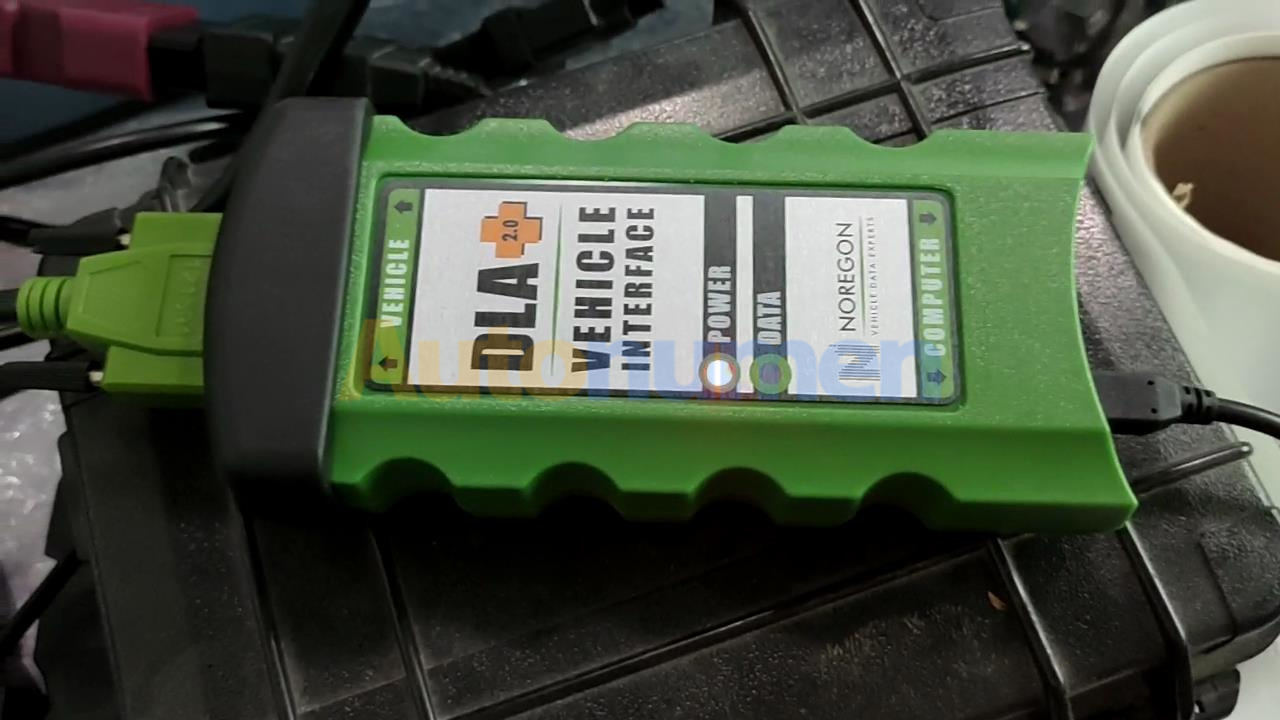
For JPRO truck, we have JPro DLA+ 2.0 Adapter Kit.

For JCB Heavy Duty Truck, we have JCB Service Master 4 V17.0.

For VOLVO truck, we have Volvo VOCOM.

For MAN CAT vehicle, we have V14.01 MAN Diagnostic Tool.

Above the diagnose tools for vehicle, but a lot of the people need key programming and mileage correct. But the diagnose tool does not have those function.

Now, we talking about the key programming tool.

1.SBB PRO2 Key Programmer V48.88.
2. Lonsdor K518S Key Programmer Odometer adjustment Tool.
3. XTOOL X100 PAD.
4. CK100 Auto Key Programmer V99.99
5. Autel MaxiIM IM508 IMMO & KEY PROGRAMMING.
Each one have car list on the website, you could find your vehicle Model No. and Year in the car list, then mean this tool could support your vehicle.

For the Mileage correct tool, we have:

1. Original Yanhua Digimaster 3 Odometer Correction Master.
2. ODO MASTER
3. Original DSP3
Each tool have they own car list, you could find your vehicle Model No. and Year in the car list, then it is mean this tool could support your vehicle.

If you have any question. Please contact us via Email: mailto:service@autonumen.com

2021年11月30日星期二

How to install and register the JPRO Professional software 2019 v2


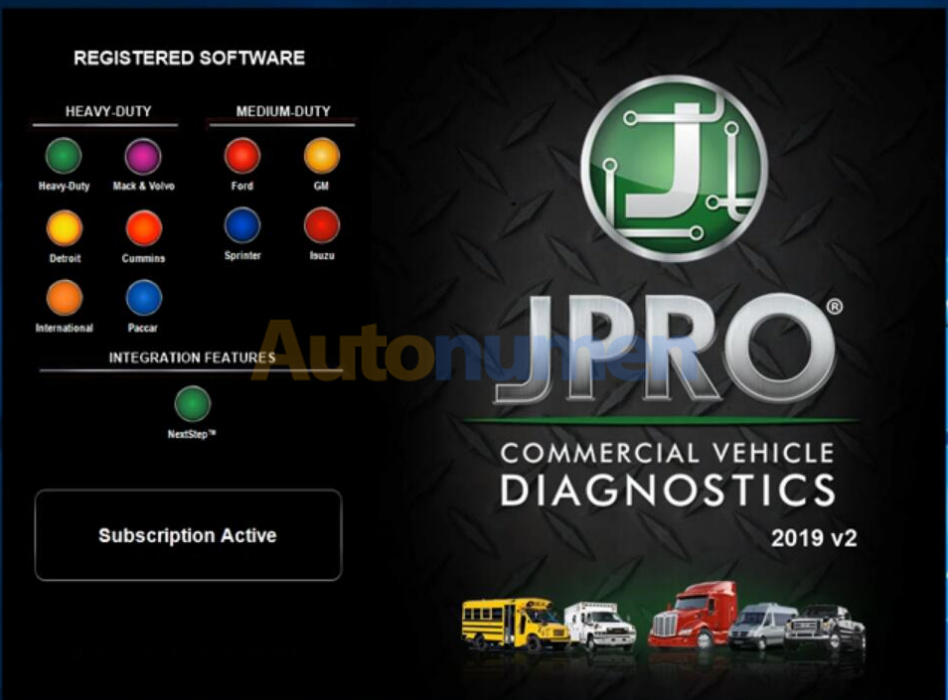
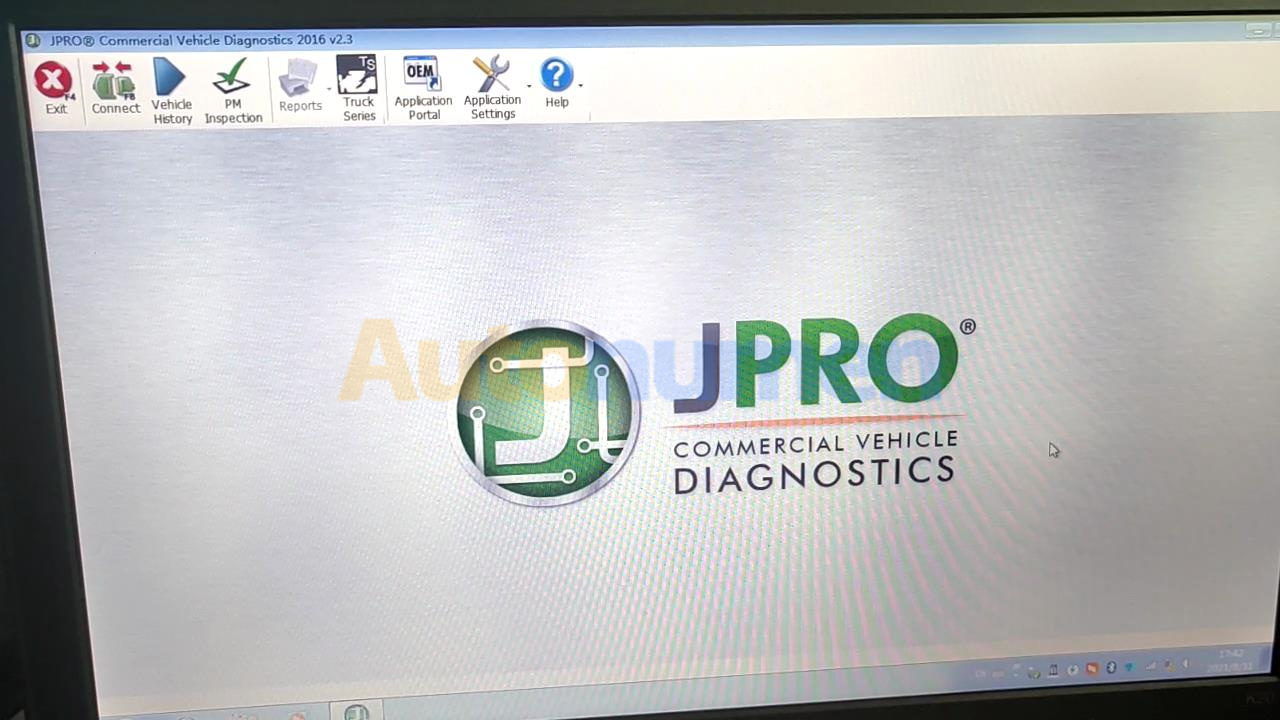
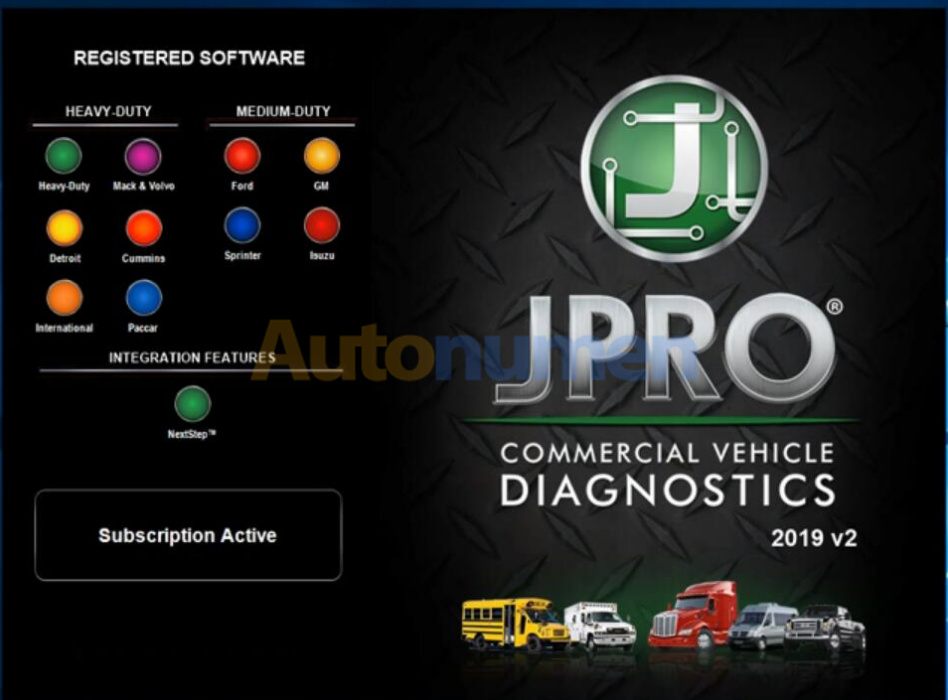
JPRO® Professional is the most comprehensive and powerful all makes, all models diagnostic tool available in the industry today. In one, easy annual subscription, JPRO provides a complete & unparalleled diagnostic service & repair solution with bi-directional functionality.

Next Step Service Information module helps speed up repair times by providing users with detailed engine repair information and troubleshooting guides for ABS and Transmissions – with the click of a button.

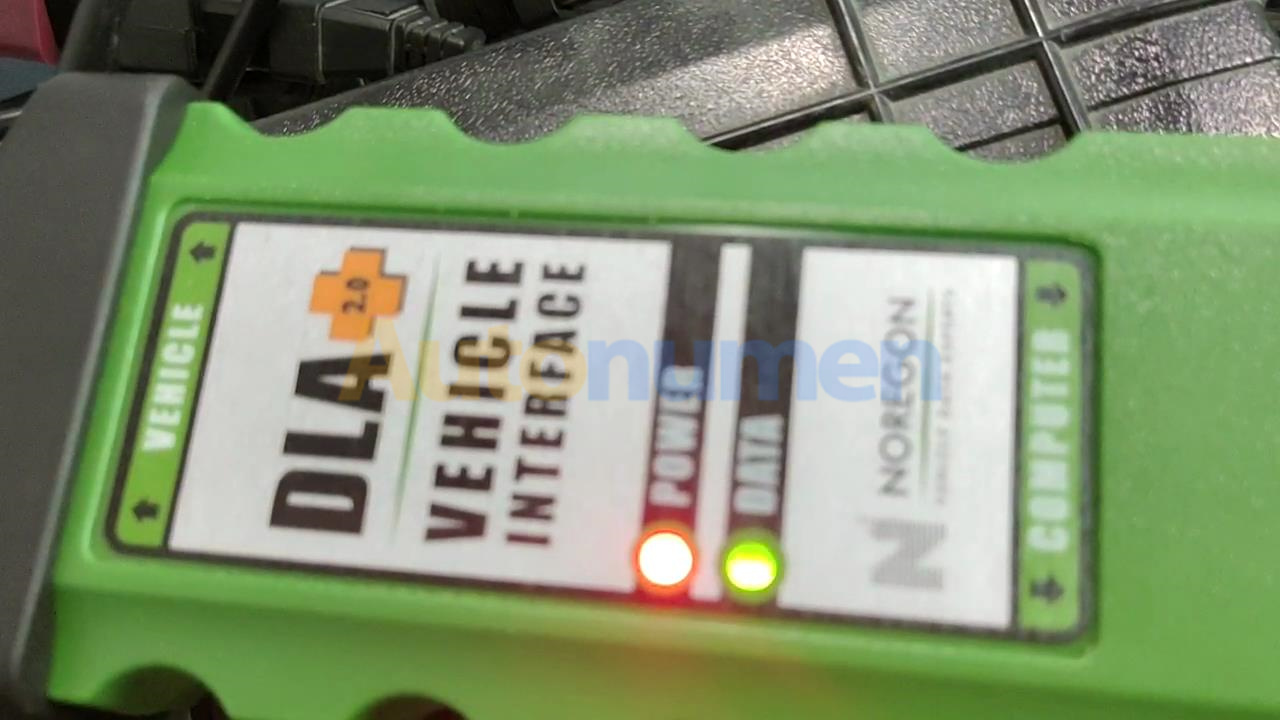
Noergon’s DLA+ 2.0 adapter is a diagnostic communication device designed to interface between a vehicle and PC via USB cable for diagnostic and vehicle information, re-programming or parameter adjustments.

Noregon JPRO Commercial Fleet Diagnostics 2019v2 Installation and Activation

Part 1. How to Install JPRO Professional software 2019 v2
How to Install and Resigter JPRO Professional software 2019 v2-1

1.Close all other running applications.
2.Insert the JPRO® USB Flash Drive into a USB port on your computer.
3.Open Windows/File Explorer and click on the USB drive.
4.Double click the “Setup” file to launch the installation window.
Internet connectivity is required for registration.

5.Click the “Install JPRO“ button. Follow the on-screen installation instructions.
6.When the installation has completed, close the Installation screen.
7.Install the DLA drivers by clicking the “Install DLA Drivers”
button.
8.Follow the on-screen instructions and the separate DLA QuickStart Guide to complete the installation.

Part 2. How to Resigter JPRO Professional software 2019 v2

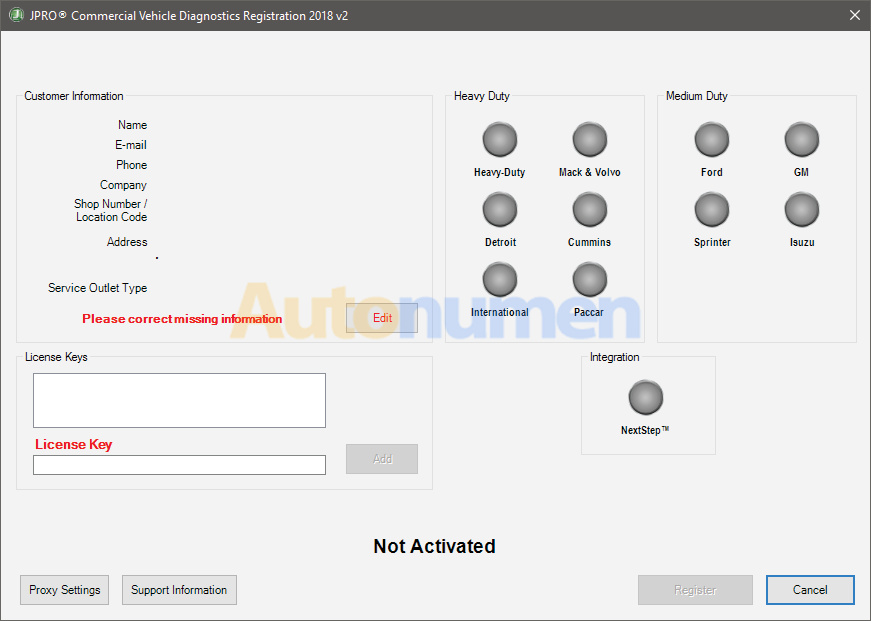
1.JPRO Commercial Vehicle Diagnostics requires registration before the application may be used. Double-click the application’s icon located on the desktop. You will be prompted to register the product.
2.Click the “Edit” Button in the Customer Information section to add your contact information. You will be required to provide an email. It must be a valid email that you can access.
3.Enter all license keys that you purchased in the License Key designated area and click the “Add” button.
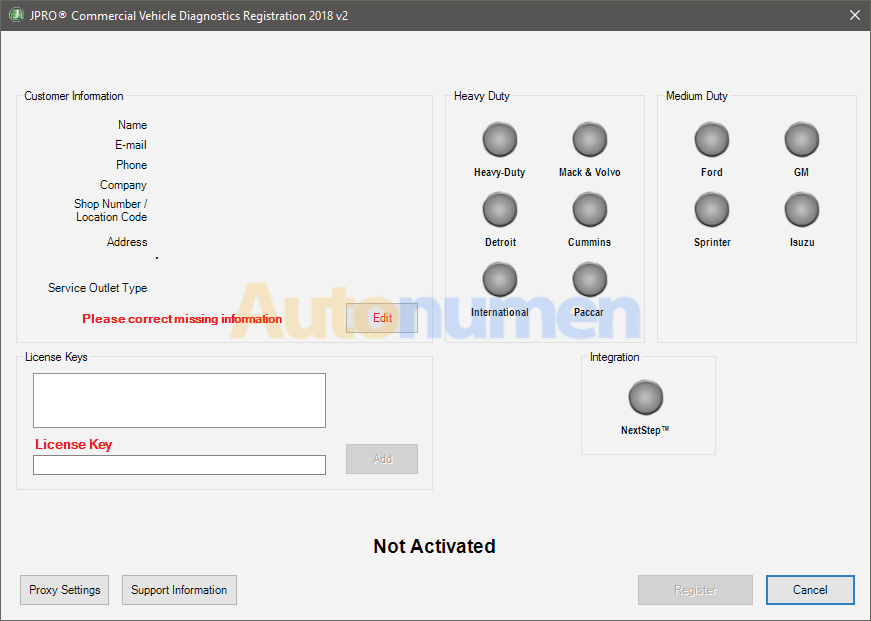
How to Install and Resigter JPRO Professional software 2019 v2-2

4.Click the “Register” button. The information will be sent to Noregon’s licensing servers over the internet. The licensing servers will send you an email with a confirmation code. You must provide the confirmation code when prompted in order to complete the activation process.
Internet connectivity is required for registration.
5.Once registration is successful, you may begin using JPRO Professional.
6.Click “Help” then select “View User’s Guide” from the JPRO® Professional main toolbar for detailed information about application features. You can also access the User’s Guide by clicking “Connect” from the main menu then clicking the “How To” button from the Connect Window.

2021年11月23日星期二

How to install and register the JPRO Professional software 2019 v2


JPRO® Professional is the most comprehensive and powerful all makes, all models diagnostic tool available in the industry today. In one, easy annual subscription, JPRO provides a complete & unparalleled diagnostic service & repair solution with bi-directional functionality.

Next Step Service Information module helps speed up repair times by providing users with detailed engine repair information and troubleshooting guides for ABS and Transmissions – with the click of a button.

Noergon’s DLA+ 2.0 adapter is a diagnostic communication device designed to interface between a vehicle and PC via USB cable for diagnostic and vehicle information, re-programming or parameter adjustments.

Noregon JPRO Commercial Fleet Diagnostics 2019v2 Installation and Activation

Part 1. How to Install JPRO Professional software 2019 v2
How to Install and Resigter JPRO Professional software 2019 v2-1

1.Close all other running applications.
2.Insert the JPRO® USB Flash Drive into a USB port on your computer.
3.Open Windows/File Explorer and click on the USB drive.
4.Double click the “Setup” file to launch the installation window.
Internet connectivity is required for registration.

5.Click the “Install JPRO“ button. Follow the on-screen installation instructions.
6.When the installation has completed, close the Installation screen.
7.Install the DLA drivers by clicking the “Install DLA Drivers”
button.
8.Follow the on-screen instructions and the separate DLA QuickStart Guide to complete the installation.

Part 2. How to Resigter JPRO Professional software 2019 v2

1.JPRO Commercial Vehicle Diagnostics requires registration before the application may be used. Double-click the application’s icon located on the desktop. You will be prompted to register the product.
2.Click the “Edit” Button in the Customer Information section to add your contact information. You will be required to provide an email. It must be a valid email that you can access.
3.Enter all license keys that you purchased in the License Key designated area and click the “Add” button.
How to Install and Resigter JPRO Professional software 2019 v2-2

4.Click the “Register” button. The information will be sent to Noregon’s licensing servers over the internet. The licensing servers will send you an email with a confirmation code. You must provide the confirmation code when prompted in order to complete the activation process.
Internet connectivity is required for registration.
5.Once registration is successful, you may begin using JPRO Professional.
6.Click “Help” then select “View User’s Guide” from the JPRO® Professional main toolbar for detailed information about application features. You can also access the User’s Guide by clicking “Connect” from the main menu then clicking the “How To” button from the Connect Window.

2021年11月9日星期二

JPRO Professional Software ECU Function Test


JPRO® Professional is the most comprehensive and powerful all makes, all models diagnostic tool available in the industry today. In one, easy annual subscription, JPRO provides a complete & unparalleled diagnostic service & repair solution with bi-directional functionality.

Next Step Service Information module helps speed up repair times by providing users with detailed engine repair information and troubleshooting guides for ABS and Transmissions – with the click of a button.

Noergon’s DLA+ 2.0 adapter is a diagnostic communication device designed to interface between a vehicle and PC via USB cable for diagnostic and vehicle information, re-programming or parameter adjustments.

FEATURES:
1.Includes Heavy-Duty Modules: Mack, Volvo, Cummins, Detroit Diesel, International & PACCAR
2.Includes Medium-Duty Modules: Ford, GM, Isuzu & Sprinter
3.Bi-Directional Controls – Perform parameter changes (Mack & Volvo), DPF Regens (Mack, Volvo, Cummins, Detroit Diesel, International & PACCAR) & bi-directional tests with proprietary data & faults
4.OE Level Fault Code Information – Display over 99% of Heavy-Duty & Medium-Duty fault codes with detailed OEM level component and trailer descriptions
5.Fault Management – Clears faults and diagnoses all vehicle components in a single, easy to use application
6.Vehicle Reporting – View and print log files, including: Vehicle Health, Trip Reports & LOV Reports
7.Store & Save Data – Record data log files for playback at a later time, even away from the truck
8.Total Vehicle Health Status – See the entire vehicle in one pass on one screen + Up-to-Date – Provides 99% coverage of all heavy-duty truck DTCs through 2016 or 2019(It depends on the software chosen by the customer)

JPRO Heavy Duty Dignostic Tool Includes:
1.Software on DVD-ROM with Keygen and Drivers
2.JPRO DLA+ 2.0 Adapter Cable
3.Heavy-Duty Vehicle Cables Type 2 Vehicle Cables (6-Pin & 9-Pin)
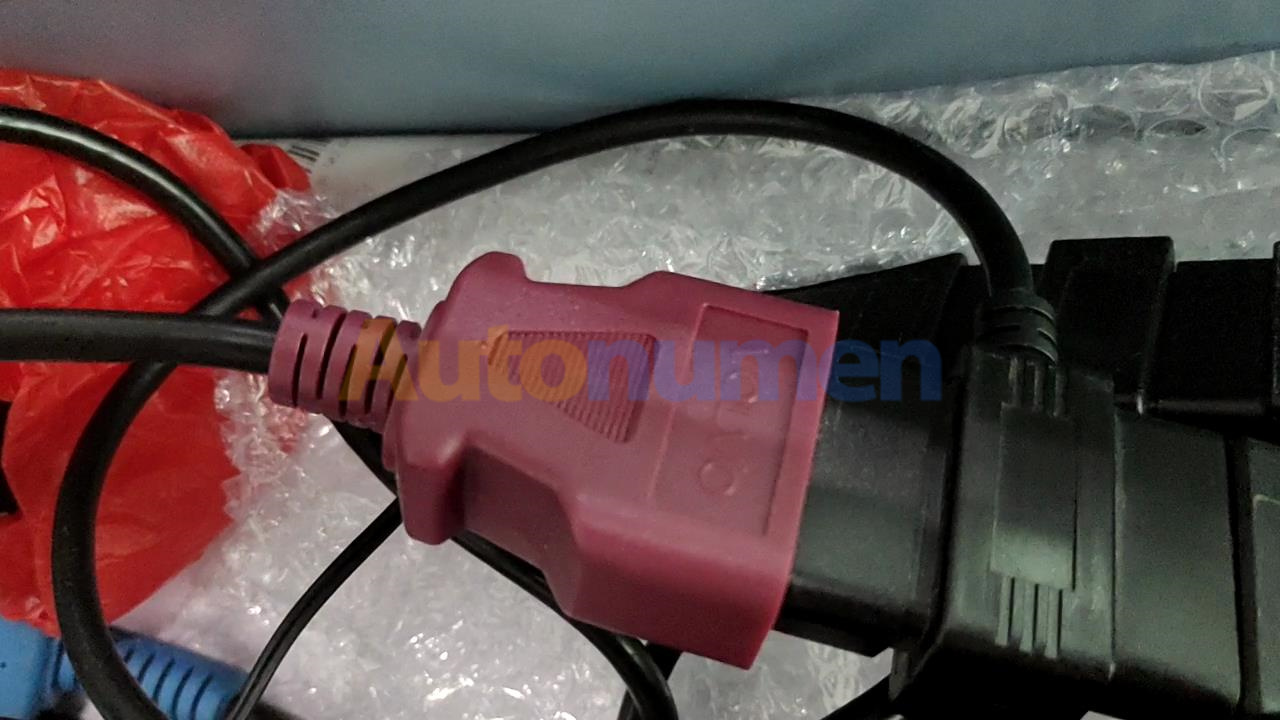
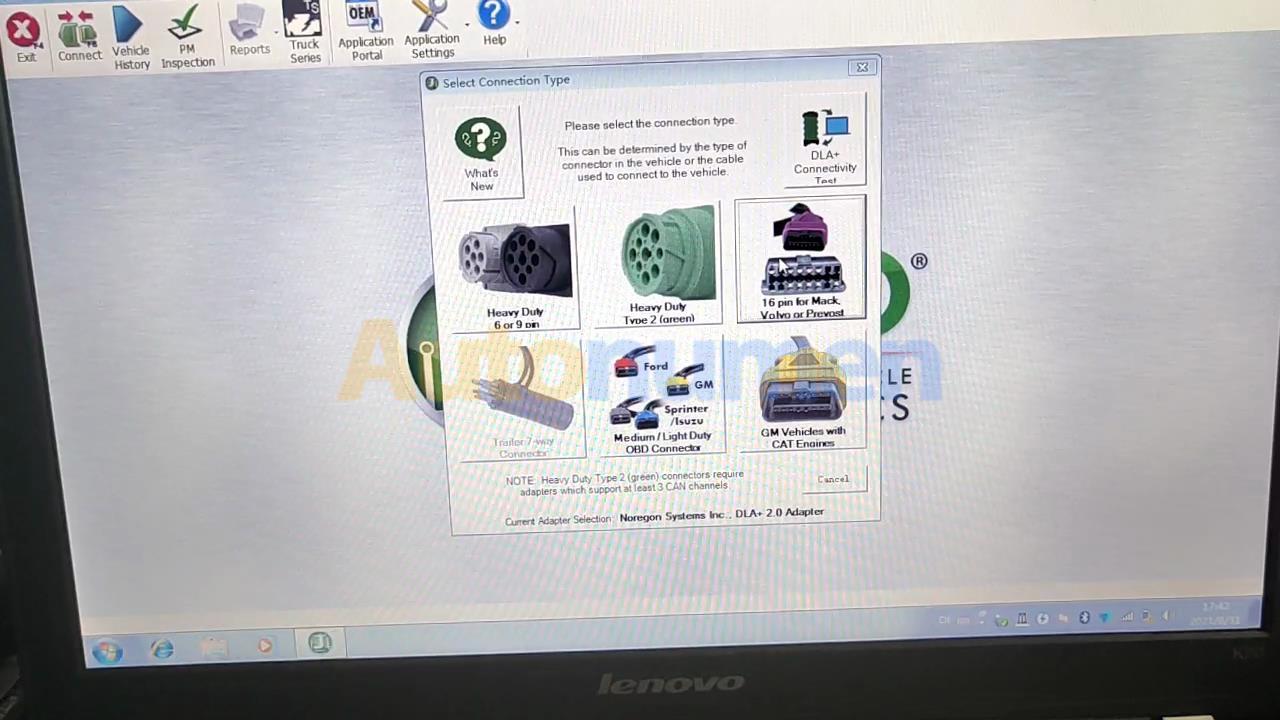
4.Medium-Duty Type-B OBDII Cables (Ford, GM, Sprinter/Hino/Isuzu, Mack & Volvo)
5.USB Cable

JPRO Professional Software ECU Function Test
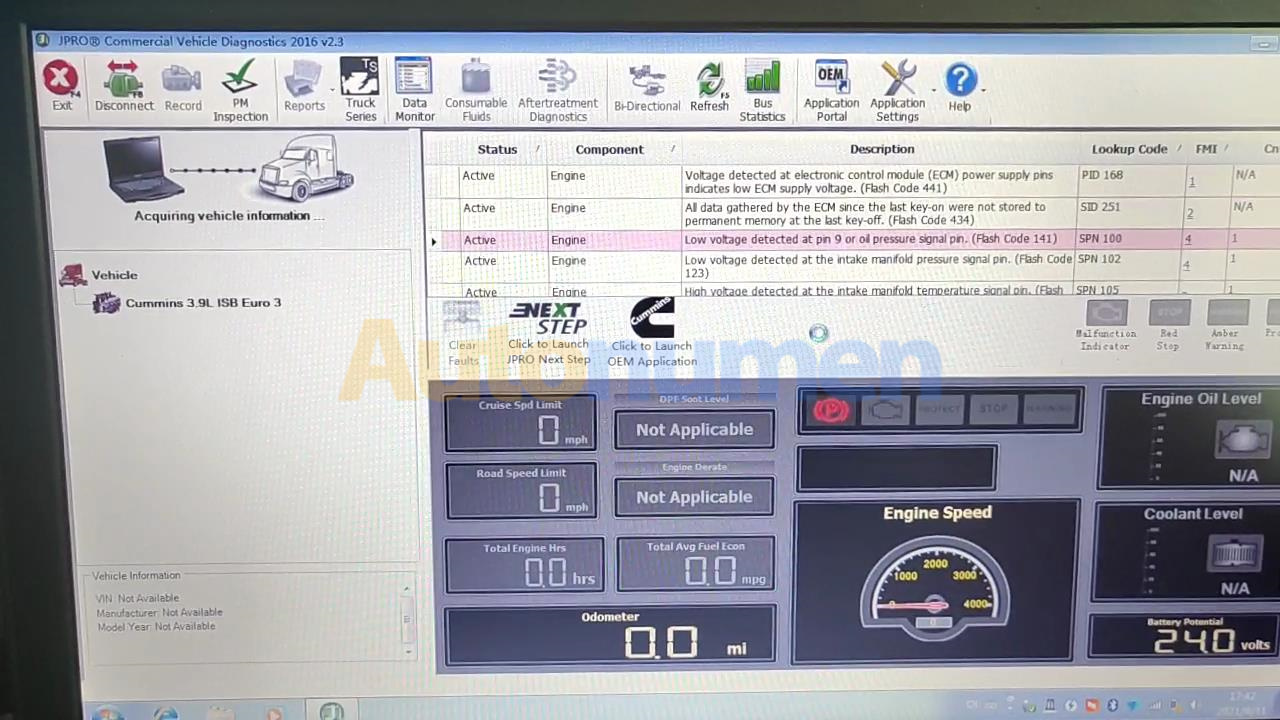
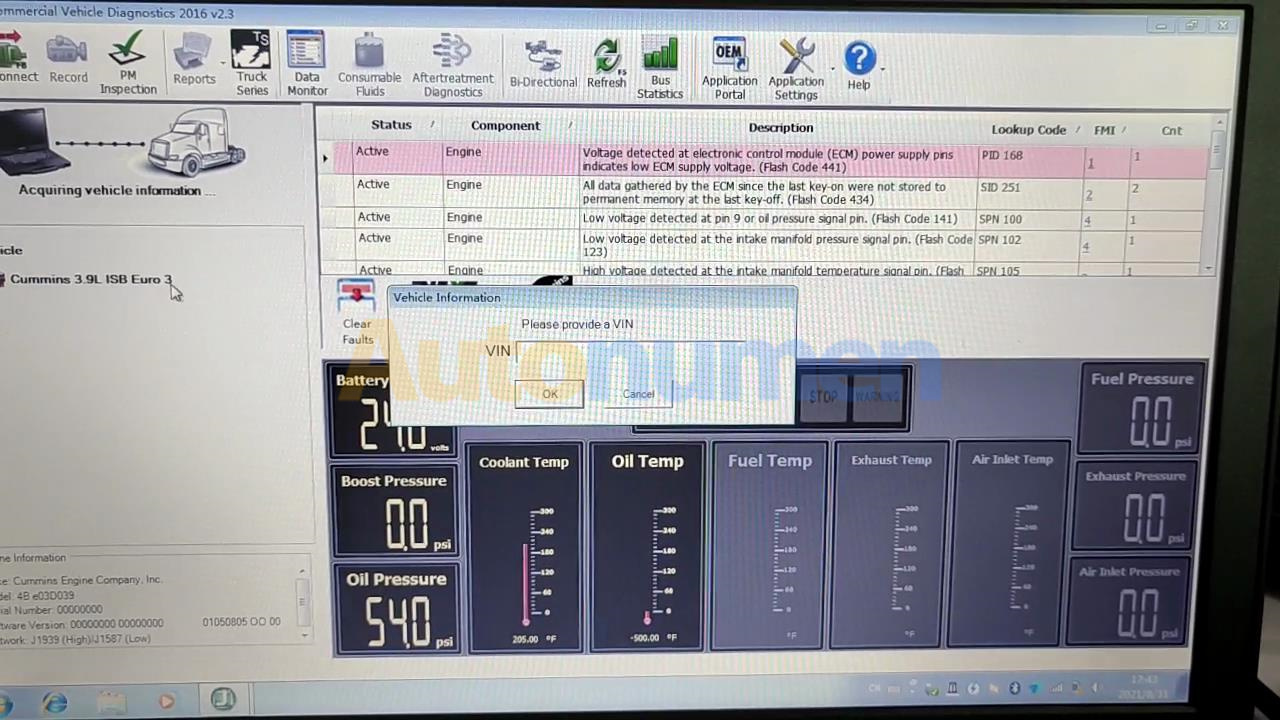
JPRO Professional Software ECU Function Test-1 JPRO Professional Software ECU Function Test-2 JPRO Professional Software ECU Function Test-3 JPRO Professional Software ECU Function Test-4 JPRO Professional Software ECU Function Test-5 JPRO Professional Software ECU Function Test-6 JPRO Professional Software ECU Function Test-7

2021年11月2日星期二

How to Install and Resigter JPRO Professional software 2019 v2


JPRO® Professional is the most comprehensive and powerful all makes, all models diagnostic tool available in the industry today. In one, easy annual subscription, JPRO provides a complete & unparalleled diagnostic service & repair solution with bi-directional functionality.

Next Step Service Information module helps speed up repair times by providing users with detailed engine repair information and troubleshooting guides for ABS and Transmissions – with the click of a button.

Noergon’s DLA+ 2.0 adapter is a diagnostic communication device designed to interface between a vehicle and PC via USB cable for diagnostic and vehicle information, re-programming or parameter adjustments.

Noregon JPRO Commercial Fleet Diagnostics 2019v2 Installation and Activation

Part 1. How to Install JPRO Professional software 2019 v2
How to Install and Resigter JPRO Professional software 2019 v2-1

1.Close all other running applications.
2.Insert the JPRO® USB Flash Drive into a USB port on your computer.
3.Open Windows/File Explorer and click on the USB drive.
4.Double click the “Setup” file to launch the installation window.
Internet connectivity is required for registration.

5.Click the “Install JPRO“ button. Follow the on-screen installation instructions.
6.When the installation has completed, close the Installation screen.
7.Install the DLA drivers by clicking the “Install DLA Drivers”
button.
8.Follow the on-screen instructions and the separate DLA QuickStart Guide to complete the installation.

Part 2. How to Resigter JPRO Professional software 2019 v2

1.JPRO Commercial Vehicle Diagnostics requires registration before the application may be used. Double-click the application’s icon located on the desktop. You will be prompted to register the product.
2.Click the “Edit” Button in the Customer Information section to add your contact information. You will be required to provide an email. It must be a valid email that you can access.
3.Enter all license keys that you purchased in the License Key designated area and click the “Add” button.
How to Install and Resigter JPRO Professional software 2019 v2-2

4.Click the “Register” button. The information will be sent to Noregon’s licensing servers over the internet. The licensing servers will send you an email with a confirmation code. You must provide the confirmation code when prompted in order to complete the activation process.
Internet connectivity is required for registration.
5.Once registration is successful, you may begin using JPRO Professional.
6.Click “Help” then select “View User’s Guide” from the JPRO® Professional main toolbar for detailed information about application features. You can also access the User’s Guide by clicking “Connect” from the main menu then clicking the “How To” button from the Connect Window.